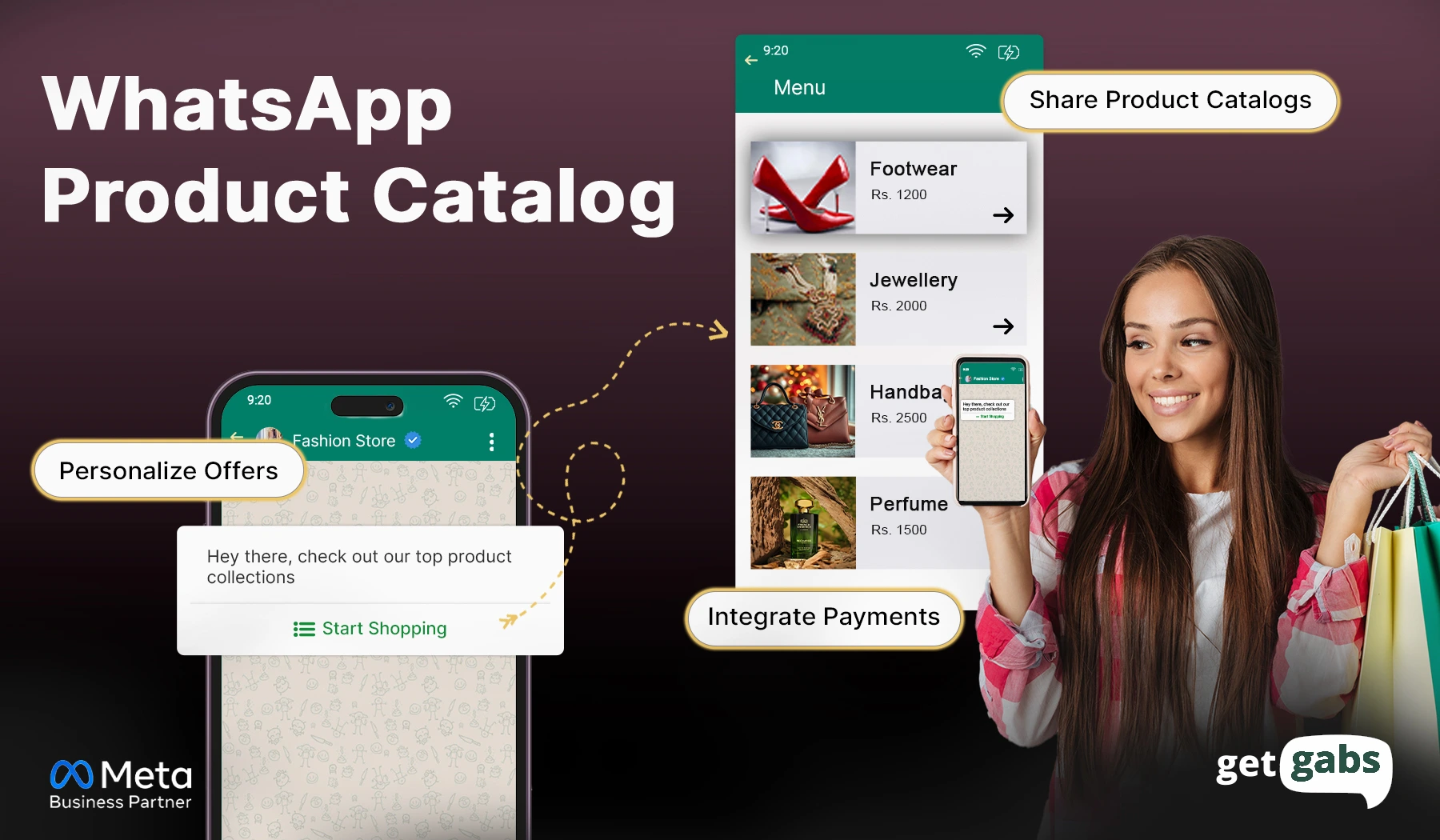



In today’s fast-paced world, customers expect instant access to products and services, right from their favorite chat apps. With WhatsApp API, you can showcase your products using Catalogs and Collections, making the buying journey smoother and faster.
Step-by-Step Guide
Here’s a step-by-step guide to help you set it up easily!
Step 1: Prerequisites
Before you begin, ensure you have:
- A WhatsApp Business API account (approved by Meta).
- A verified business on Meta Business Manager.
- Access to the Commerce Manager to manage catalogs.
- Proper integration support — either via your WhatsApp API provider or direct setup.
Step 2: Set up Facebook Catalog and Collection
1. Go to Facebook Commerce
2. Click on Add Product to start creating a catalog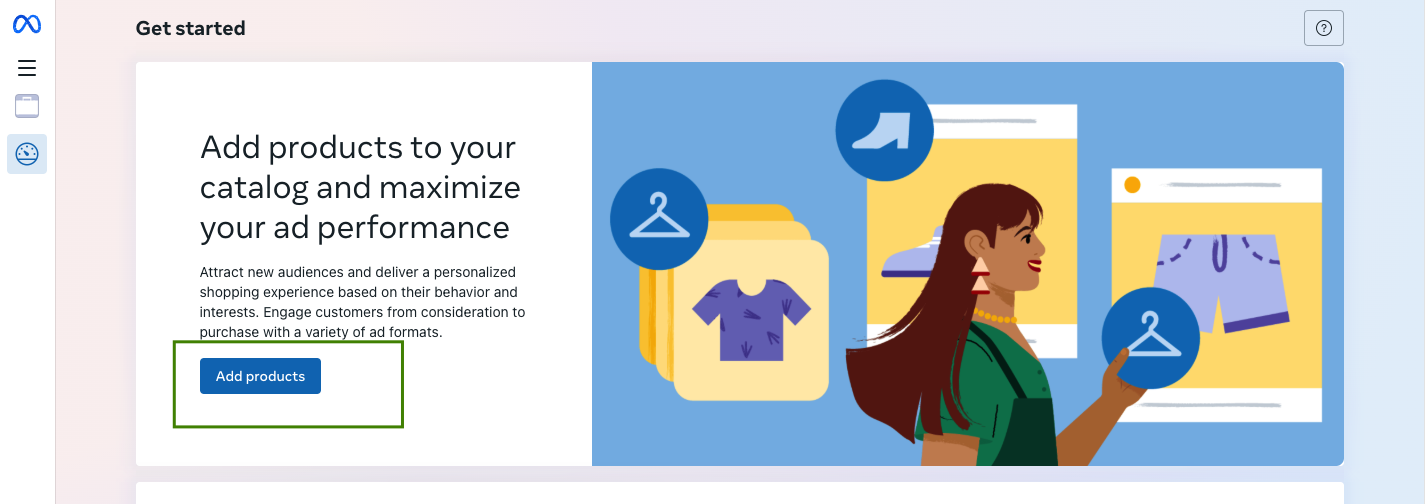
3. Add basic info about your catalog and choose the platform type (Shopify, WooCommerce, other, etc.)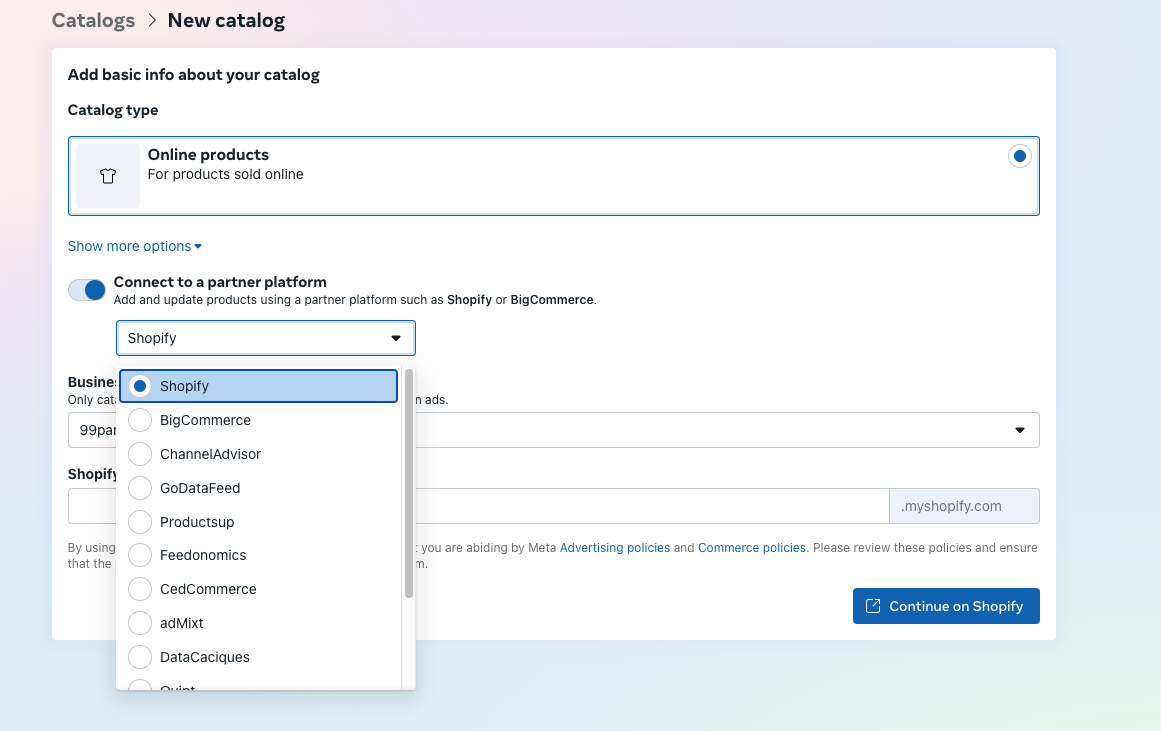
4. You can create a catalog via a Google Sheet or add products.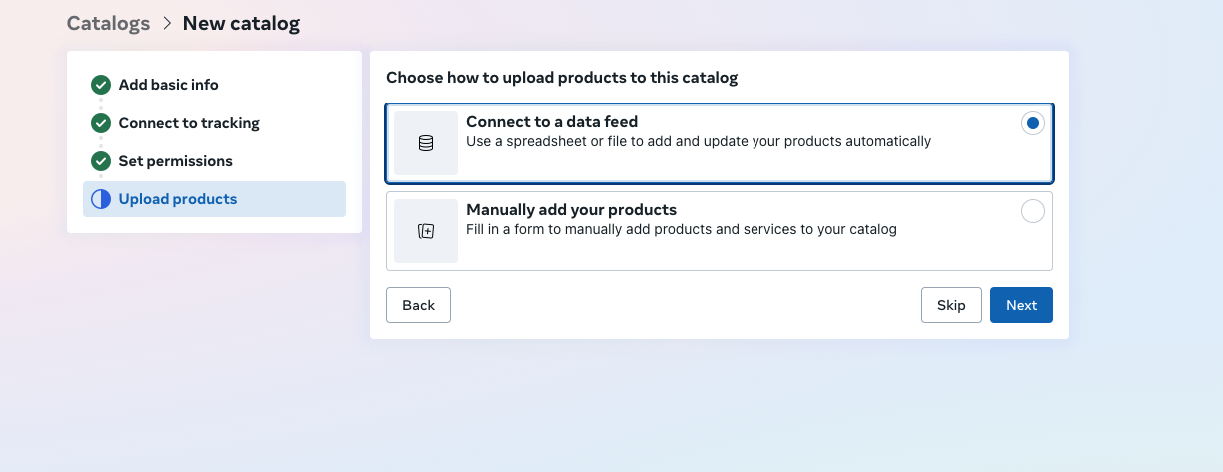
5. Wow, the product list has been updated. You can create collections as well by clicking on Set. 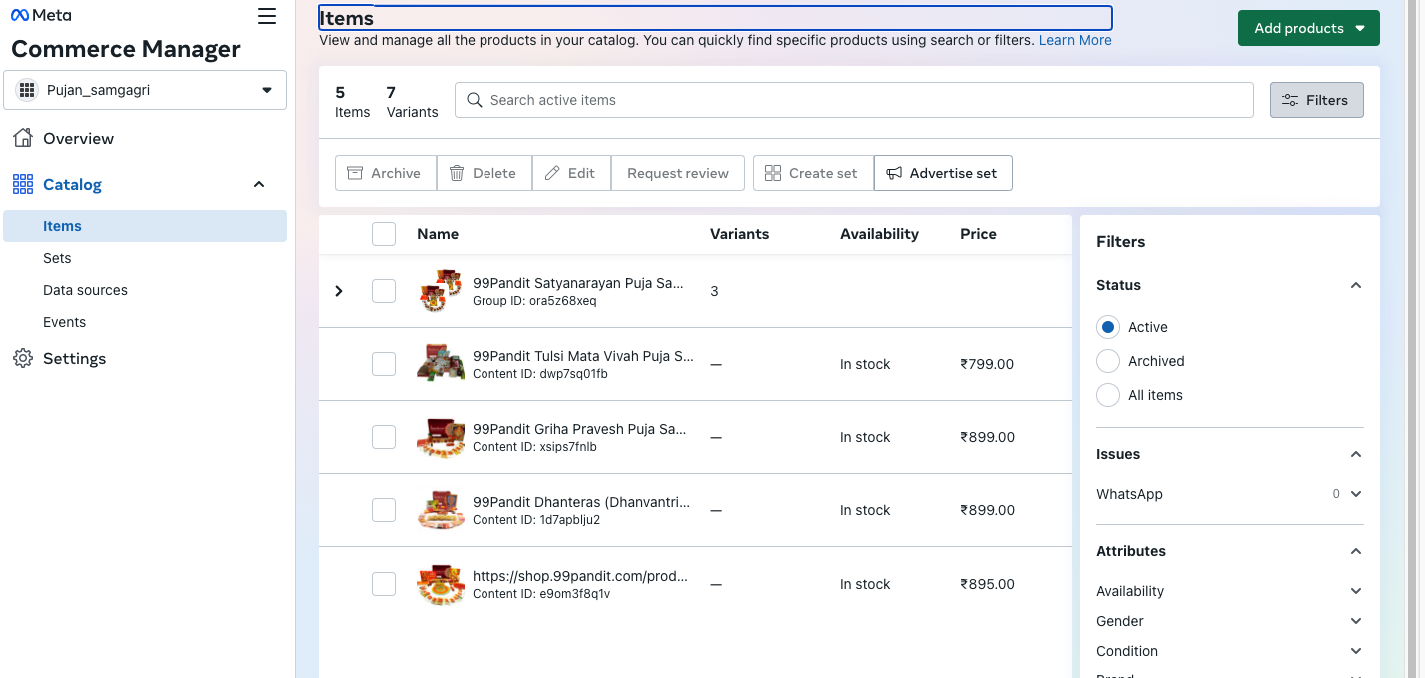
Step 3: Now, provide catalog access to Getgabs Whatsapp Business API
1. Click here: https://business.facebook.com/select/
2. Now, select the business portfolio and go to Catalog under Data Source 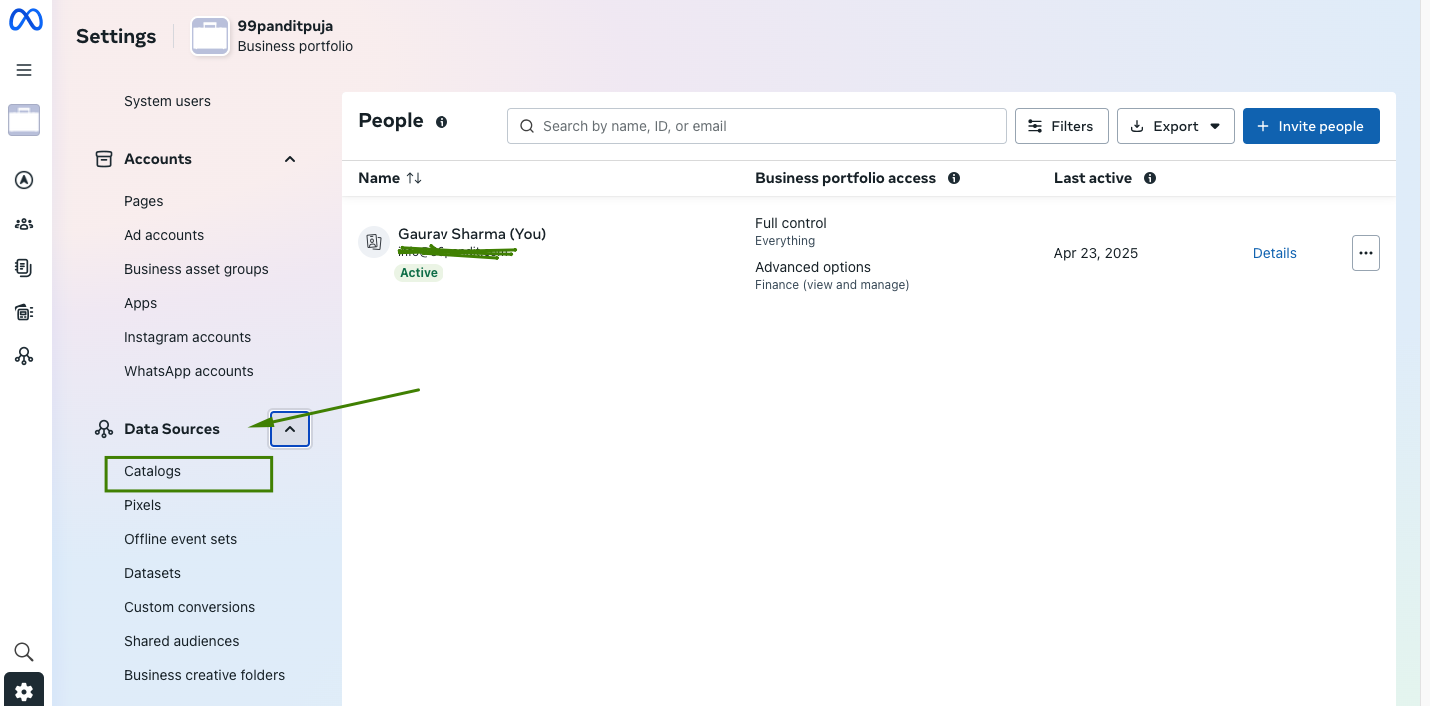
3. Choose the right catalog, click on Assign Partner, and choose Assign Partner by Business ID. 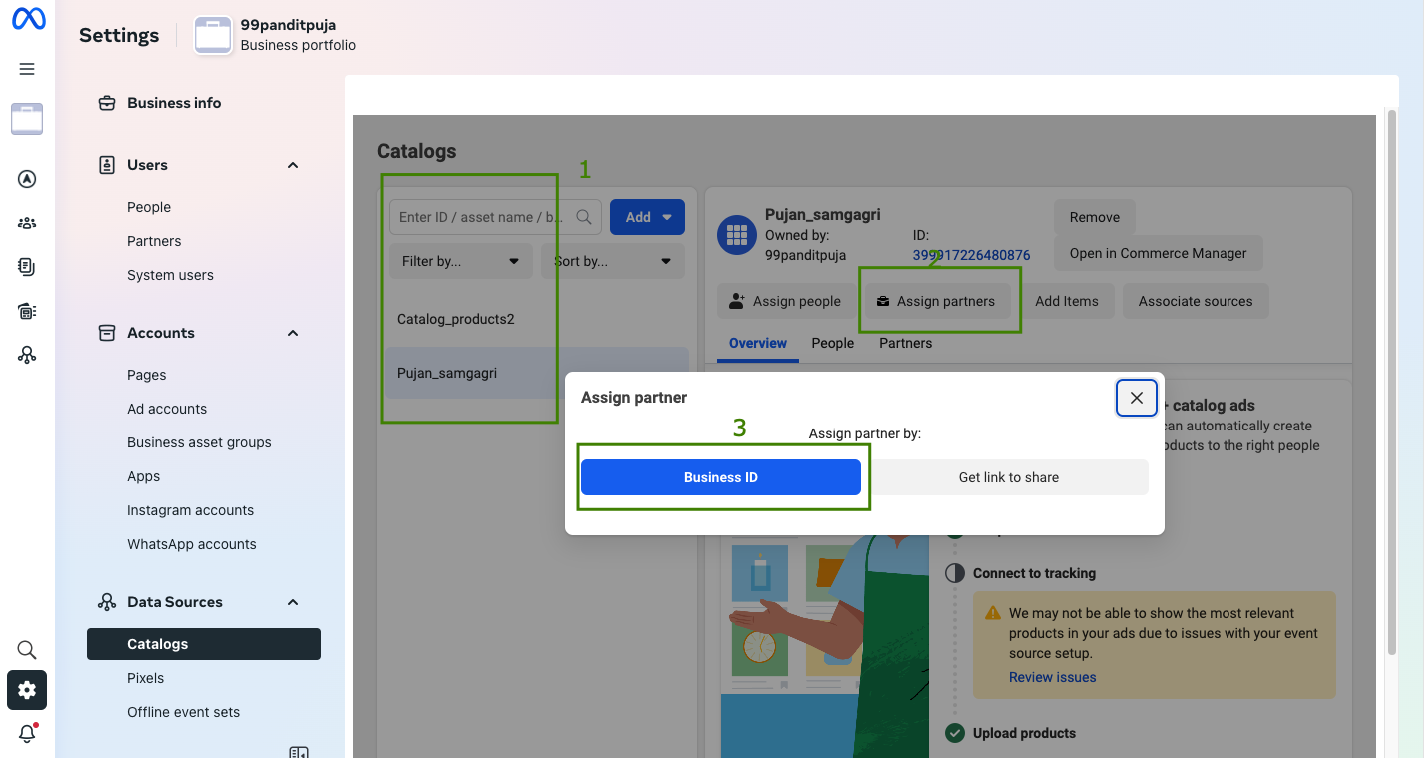
4. Under Business ID, copy and paste ID: 416471564653722, and turn ON the manage catalog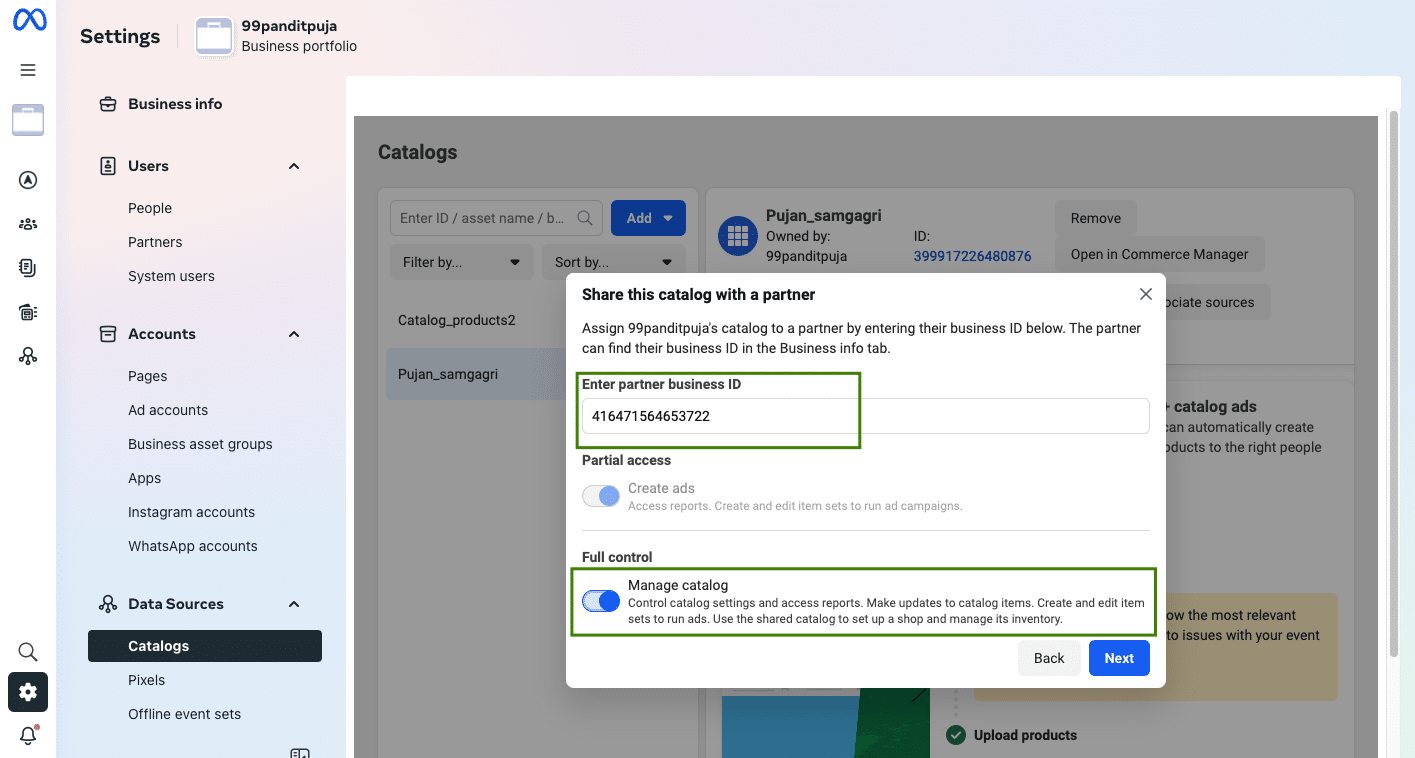
5. Click on Next.
Step 4: Now, you will see a cart button on your WhatsApp Business API number
1. Now go to WhatsApp Manager 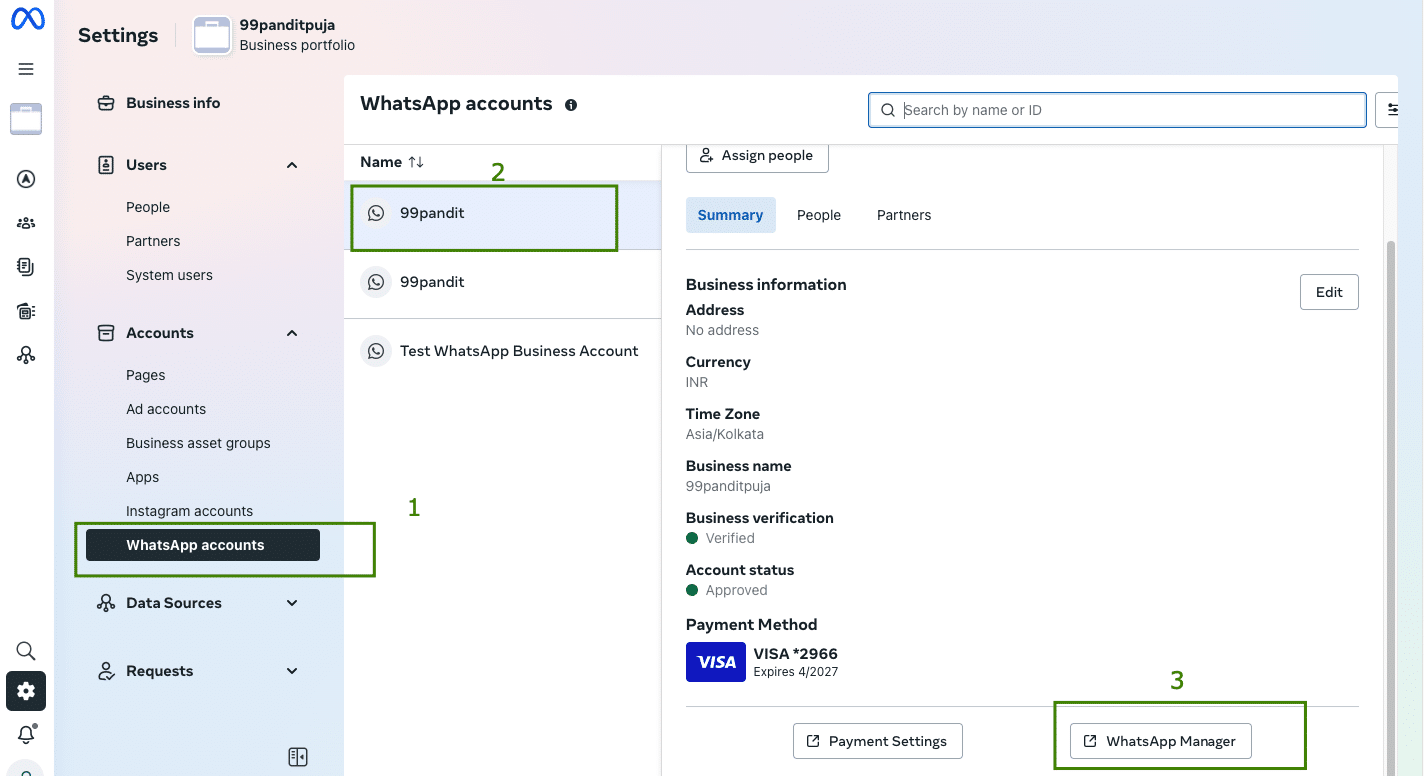
2. Select Catalog and click on Connect Catalog 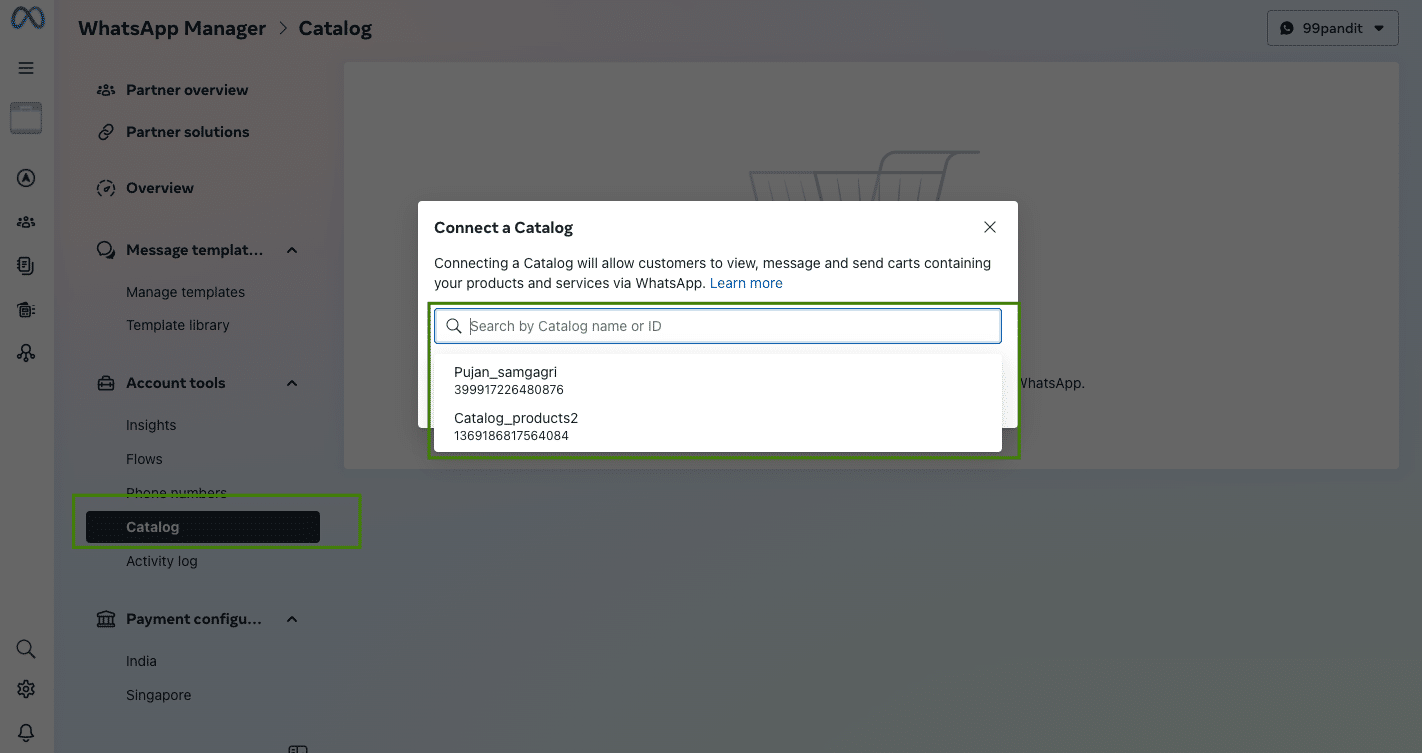
3. Wow, the Final Screen will be showing the connected catalog 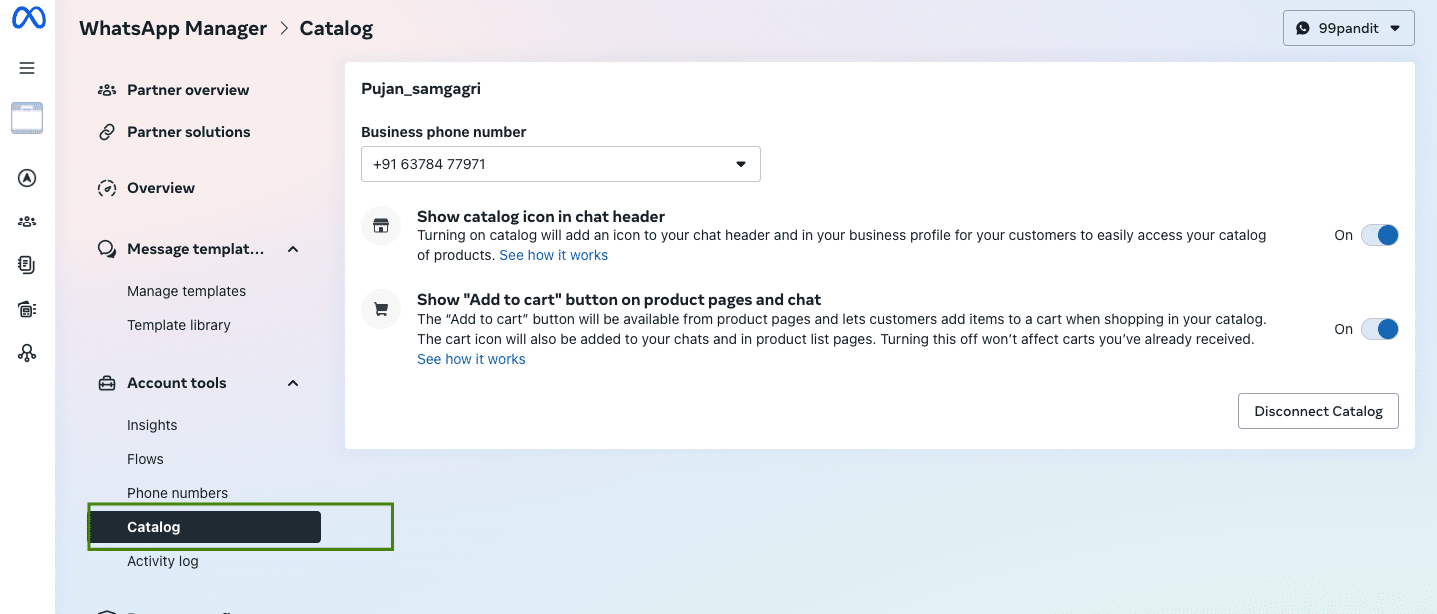
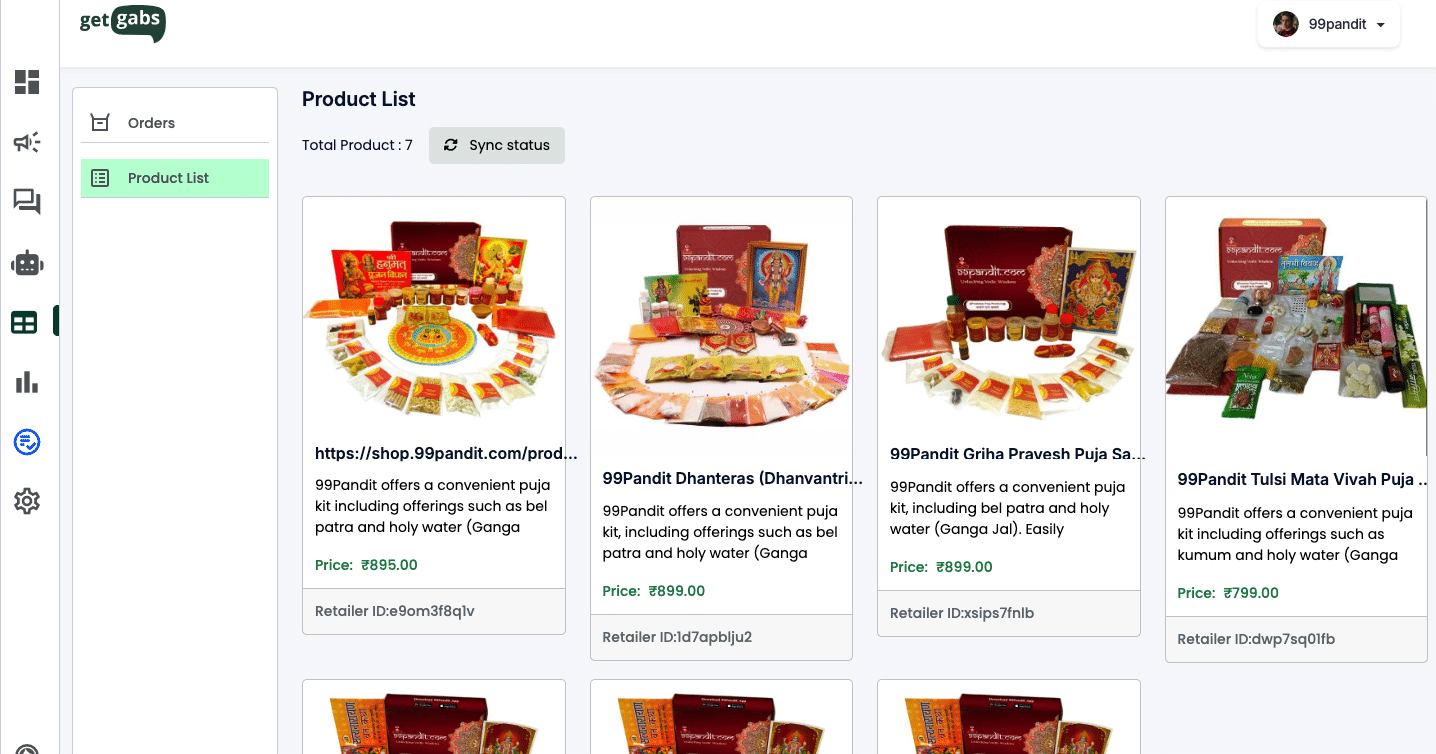
Step 5: You can check the product list on Getgabs and synchronise products
Log in to the Getgabs panel and go to Catalog >> Product List
Step 6: Once you get a confirmed order from your customer, check out on your Getgabs panel
Go to Catalog >> Orders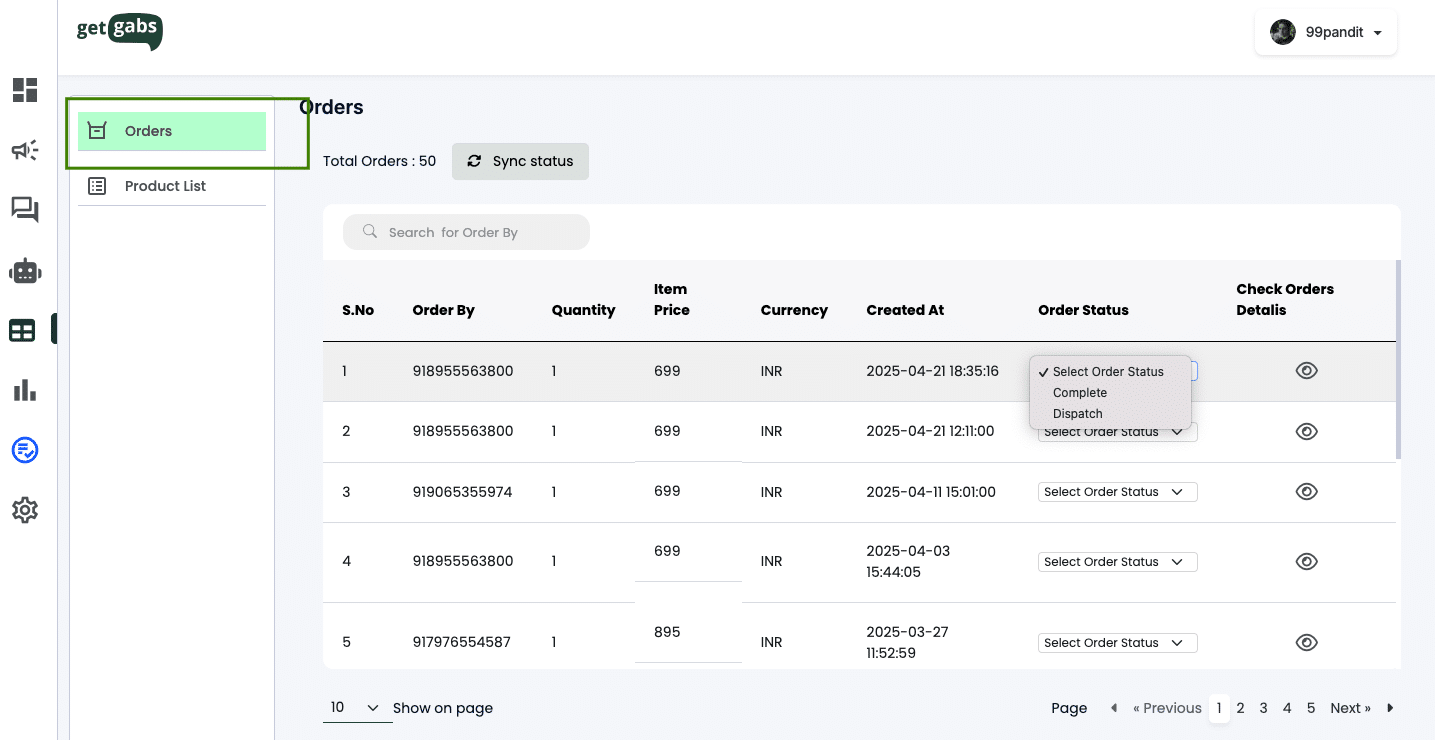
All set to get more revenue through WhatsApp for your Business.