


Ever wondered why shoppers visit your store, browse products, and then leave without buying? A single simple doubt about price, delivery, or product can cost you a sale. Like in a physical shop, a salesperson would step in to help you. Online, this missed guidance leads to an abandoned cart.
With 3.3 billion active users, WhatsApp is the most trusted solution to turn a “maybe” into “yes.” Instead of email and long forms, it is more familiar and within reach platforms. That’s why it is important to embed WhatsApp chat on your Shopify store. It is one of the easiest ways to guide your visitors by placing the Shopify floating WhatsApp chat widget with phone number code using Getgabs.
Imagine it as a store helper who is on call 24/7. Getgabs now allows you to add WhatsApp Chat to your Shopify site to offer instant support, develop loyalty, and provide an easy way to communicate with you. In this guide, we will be discussing how to embed WhatsApp Chat on a Shopify website to transform your customer experience.
What is the WhatsApp Chat Widget?
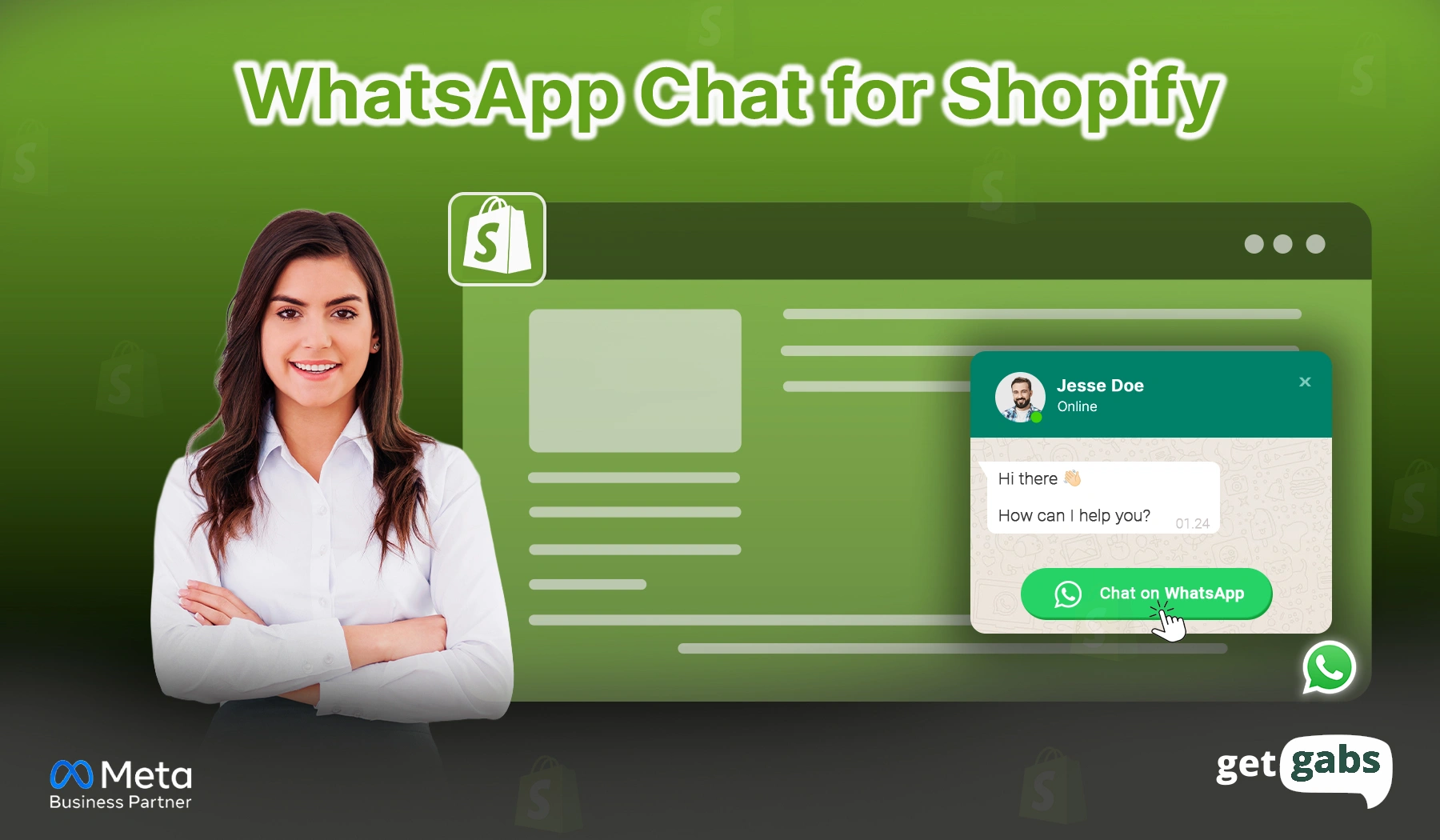
A WhatsApp Chat widget is a small floating button or pop-up that sits in the corner of your website. When visitors tap on it, it directly opens a WhatsApp chat to start a conversation. Rather than copying a number or filling out a “Contact us” form, they can message you while still browsing your page. No download. No long forms. Just one click, and the stage is ready to connect.
It is the quickest way to turn your random visitor into a satisfied customer. Depending on how you set it up, your WhatsApp integration on a website can appear in different ways:
- Floating button that stays visible across pages.
- An embedded widget that encourages users to start a chat.
- A multi-agent support point that directs the conversation to the appropriate team.
- Click-to-chat link that opens a WhatsApp chat immediately.
Key Benefits of Adding WhatsApp Chat for Shopify
Embedding a WhatsApp chat widget with phone number code in your Shopify store is more than just a chat box. Here’s why it serves as a powerful tool for your customer support:
1. Direct Click-to Chat
- Allow visitors to reach in a single tap without copying the number.
- Pre-filled message that opens automatically upon tapping.
- Visible without interrupting the shopping experience.
2. Reduces Checkout Drop-offs
- An uncertain customer is able to pose questions within a minute.
- Settle payment, COD, or delivery in real-time.
- Minimize cart abandonment and increase purchases.
3. Sticky Visibility Across All Pages
- Stays fixed as the customer scrolls through your website pages.
- Constant reminder of available help.
- Catches customers exactly at the moment they have doubt.
4. Captures Warm Leads Instantly
- No long form fill-ups or email sign-up required.
- You get their WhatsApp number automatically.
- Interested visitors can connect quickly.
What You Need Before You Start?
Before adding the WhatsApp Chat widget to your Shopify website, it is vital to keep these four things ready:
- Shopify Store: Any Shopify plan will be compatible, and there will be no upgrades required.
- Getgabs WhatsApp Chat App: Access the Getgabs Shopify app that helps you easily add a WhatsApp chat widget to your store.
- WhatsApp Business Number: A unique number that has been registered with WhatsApp Business or the WhatsApp Business API.
- Your Brand Logo: Your brand logo in a JPG or PNG file, which can be uploaded.
Once you have all of these four ready, you can get started.
How to Embed WhatsApp Chat to Your Shopify Website?
Integrate a WhatsApp chat widget in just two simple processes that include generating custom code and then adding it to your Shopify theme. Here’s step-by-step guide:
1. Generate WhatsApp Chat Code
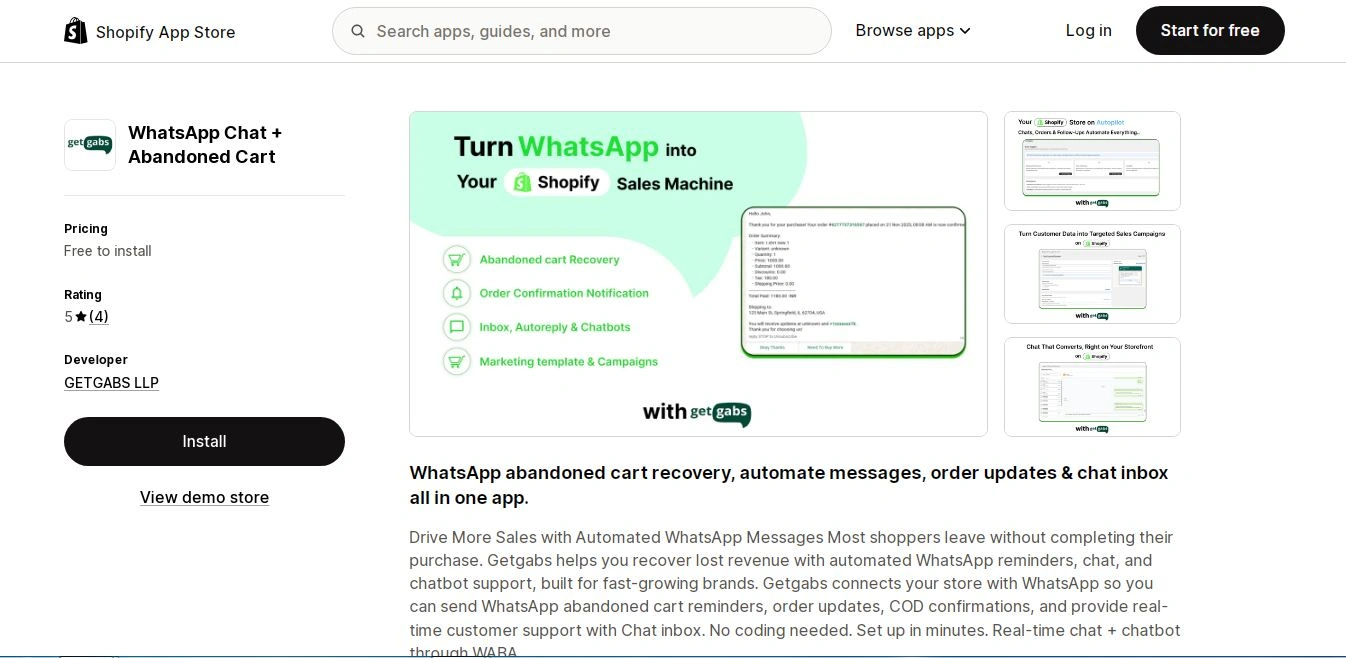
Step 1: Visit the Shopify app store and install the Getgabs WhatsApp chat app.
Step 2: Go to your Shopify admin panel >> Navigate to App >> Getgabs WhatsApp Chatbot API to open the dashboard. Once it loads, scroll down to the Quick Actions section and click the “Create chat Widget” button.
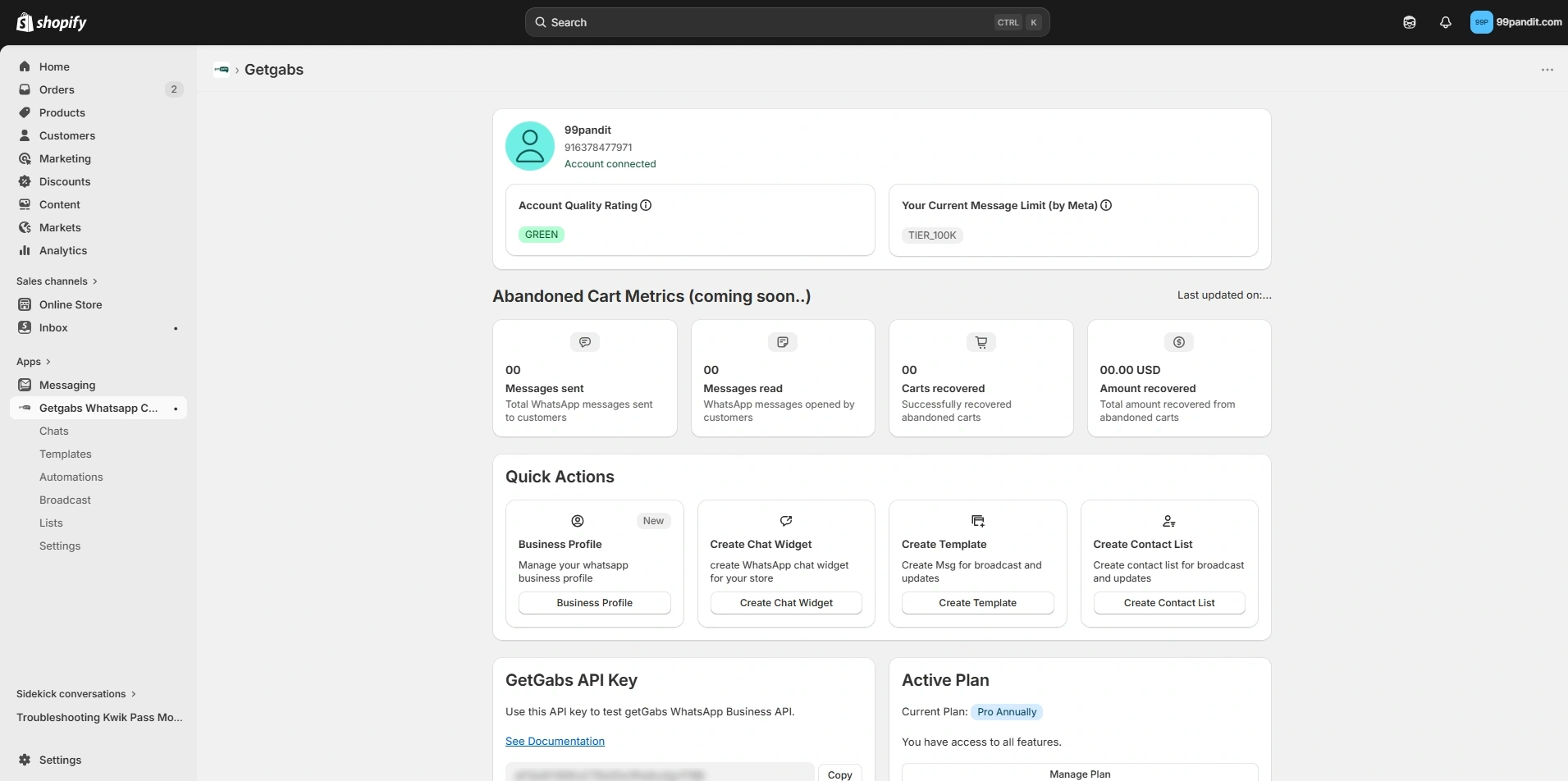
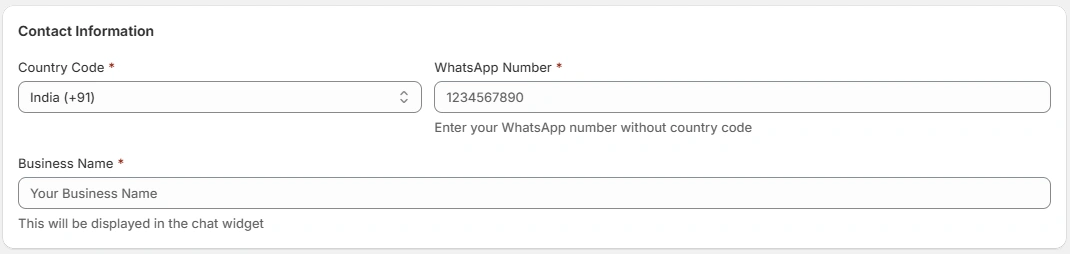
Step 3. In the “Contact Information” section, enter your country code, WhatsApp number (without country code), and your business name that you want to appear on the widget.
Step 4: In the Business Logo section, click “Choose File” to upload your brand logo in JPG or PNG format. If you have a logo set already or want it updated, simply choose a new file to replace the current one.

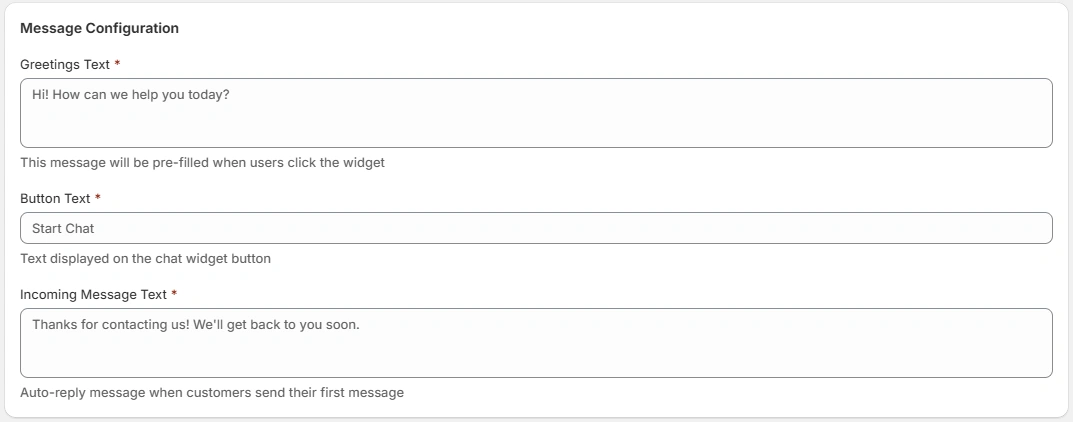
Step 5: Heading to a “Message Configuration” section, customize the Greeting Text that users see first as they click the widget, set the Button text (e.g., Start Chat), and write an Incoming message text as an automatic reply customers receive when they first message.
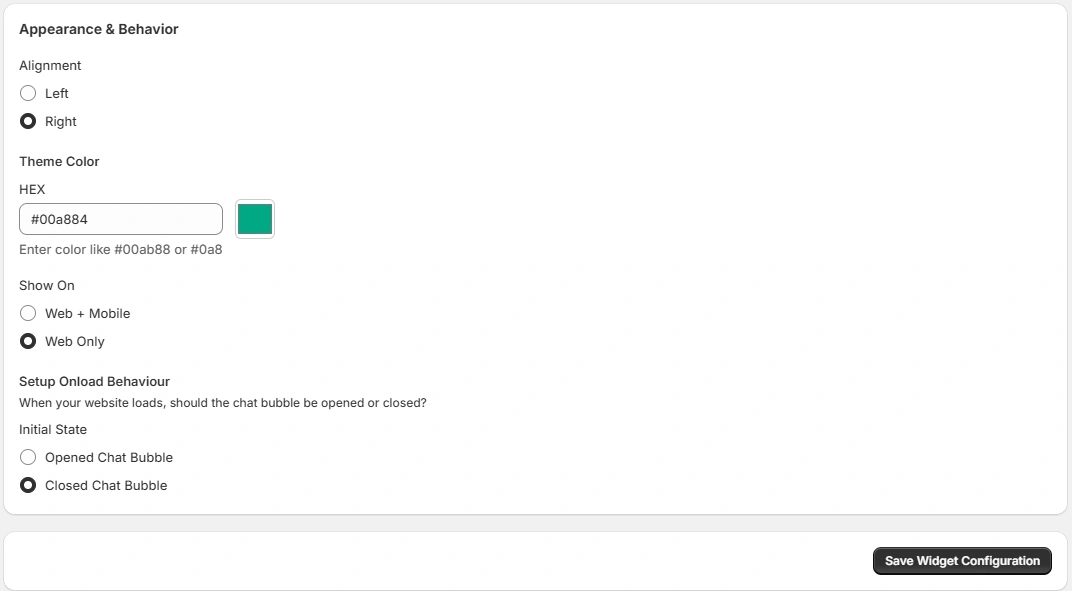
Step 6: At Appearance & Behavior, select alignment (left/right), set your theme color (HEX), and choose where it appears (web + mobile or web only). Then just pick an initial state and click on Save Widget Configuration.
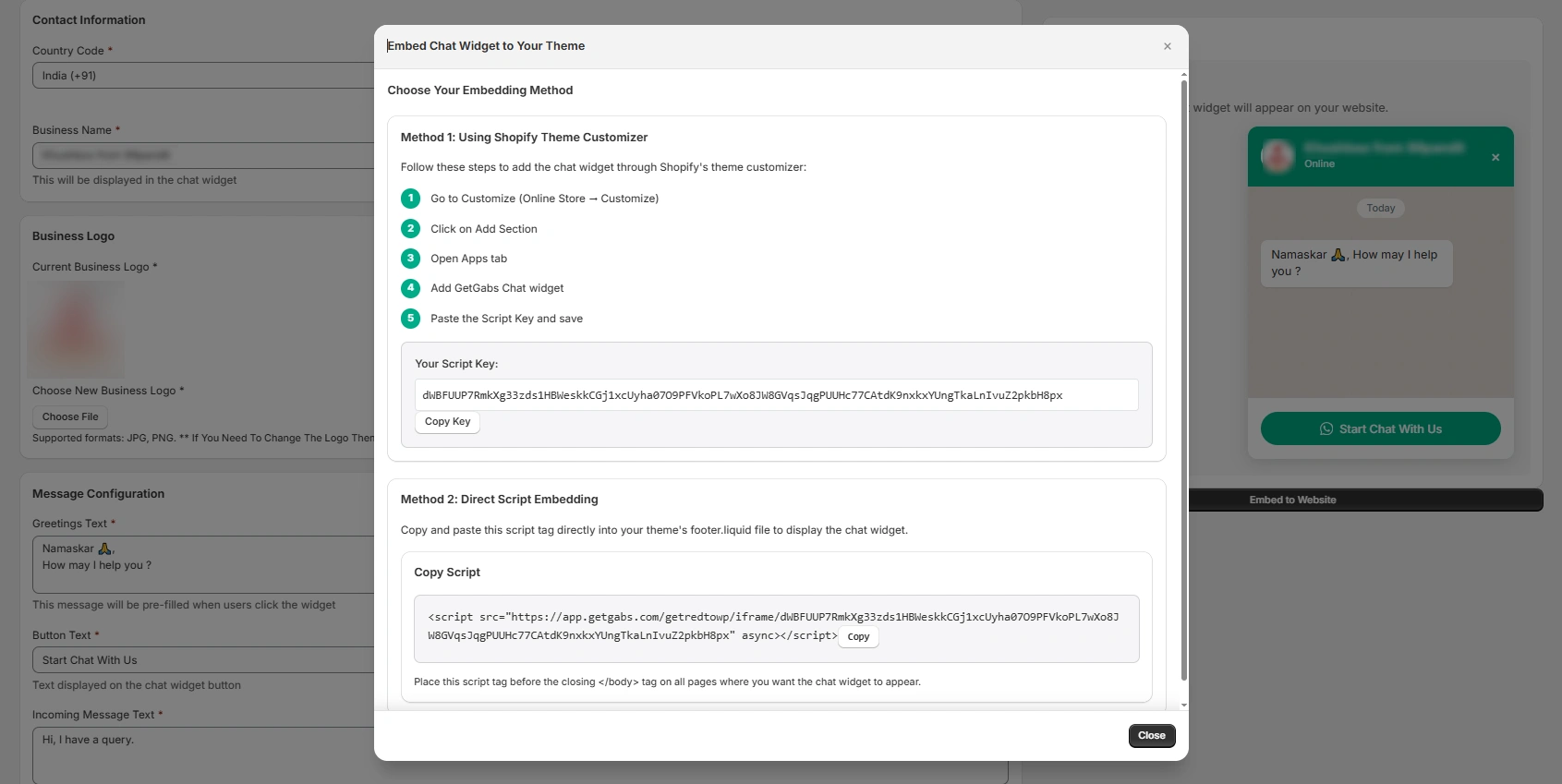
Step 7: In the preview section, click Embed to website to generate a code and copy the Script Code.
2. Embed The WhatsApp Chat Code
Method 1: Using Shopify Theme Customizer
Follow these steps to add a chat widget via Shopify’s theme customizer:
- Go to Customize (Online Store → Customize)
- Click on Add Section
- Open Apps tab
- Add the Getgabs Chat widget
- Paste the Script Key and save
Method 2: Direct Script Embedding
- Just copy and paste the script tag directly into your theme’s footer liquid to showcase the chat widget.
- Set this script tag before the closing </body> tag on all pages where you want the chat widget to appear.
WhatsApp vs. Live Chat vs. Chatbots (Standard)
| Feature | WhatsApp Chat Widget | Chatbot (Standard) | Live Chat Support |
| User Familiarity | Very high | Medium | Medium |
| Response Type | Human + auto replies | Fully automated | Human agents |
| 24/7 Availability | Yes | Yes | Limited |
| Speed | Fast | Instant | Depends |
| Chat History | Saved | Session-based | Ends on exit |
| Lead Capture | Auto capture | Via forms | Manual |
| Automation | Medium | High | Low |
| Personalization | High | Medium | High |
| Complex Queries | Yes | Limited | Best |
| Scalability | Medium | High | Limited |
| Trust Level | High | Low | High |
| Setup Time | Easy | Medium | Medium |
| Cost | Low–Medium | Low–Medium | High |
| Best For | Sales + retention | FAQs + automation | Sales + support |
Conclusion
Learning how to embed WhatsApp Chat on a Shopify website is a smart move to grow your business and make your store’s website more user-friendly. It enables you to meet your customers on an app they already use in their daily lives and removes the barriers that generally lead to abandoned carts. From instant answers to queries to personalized product advice, this floating tool transforms your Shopify website into a high-converting sales machine.
With platforms like Getgabs, the entire embedding process is simple and requires no technical expertise. You get access to professional and real-time support with the Shopify floating WhatsApp Chat Widget button. Don’t just let your valuable customer slip away due to a simple doubt that can be solved with a quick chat button. Install the Shopify app to embed WhatsApp chat for your Shopify store, and start seeing real results.
Related:
Embed WhatsApp Chat on a WordPress Website