

Too Long? Read This First
- Most “message not delivered” issues happen due to certain causes like an expired 24-hour session window, unapproved templates, hitting the message limit, or low-quality resting, each with its own error code (131026, 132001, 131047, and more).
- Before troubleshooting, you must check your message's status. “Pending,” “Not Delivered,” and “Failed” have different meanings and require different solutions.
- At scale, don’t just chase a single failure. Instead, watch your overall delivery rates and patterns like inactive numbers, quality rating dips, or repeat template issues.
- You can prevent these errors by regularly cleaning your contact list, pacing out your sends, and using pre-approved templates.
- An official Meta WhatsApp API partner like Getgabs helps to avoid message delivery failure by offering real-time delivery tracking, instant failure alerts (with error codes), and template approval support to catch errors before they dent your delivery rate.
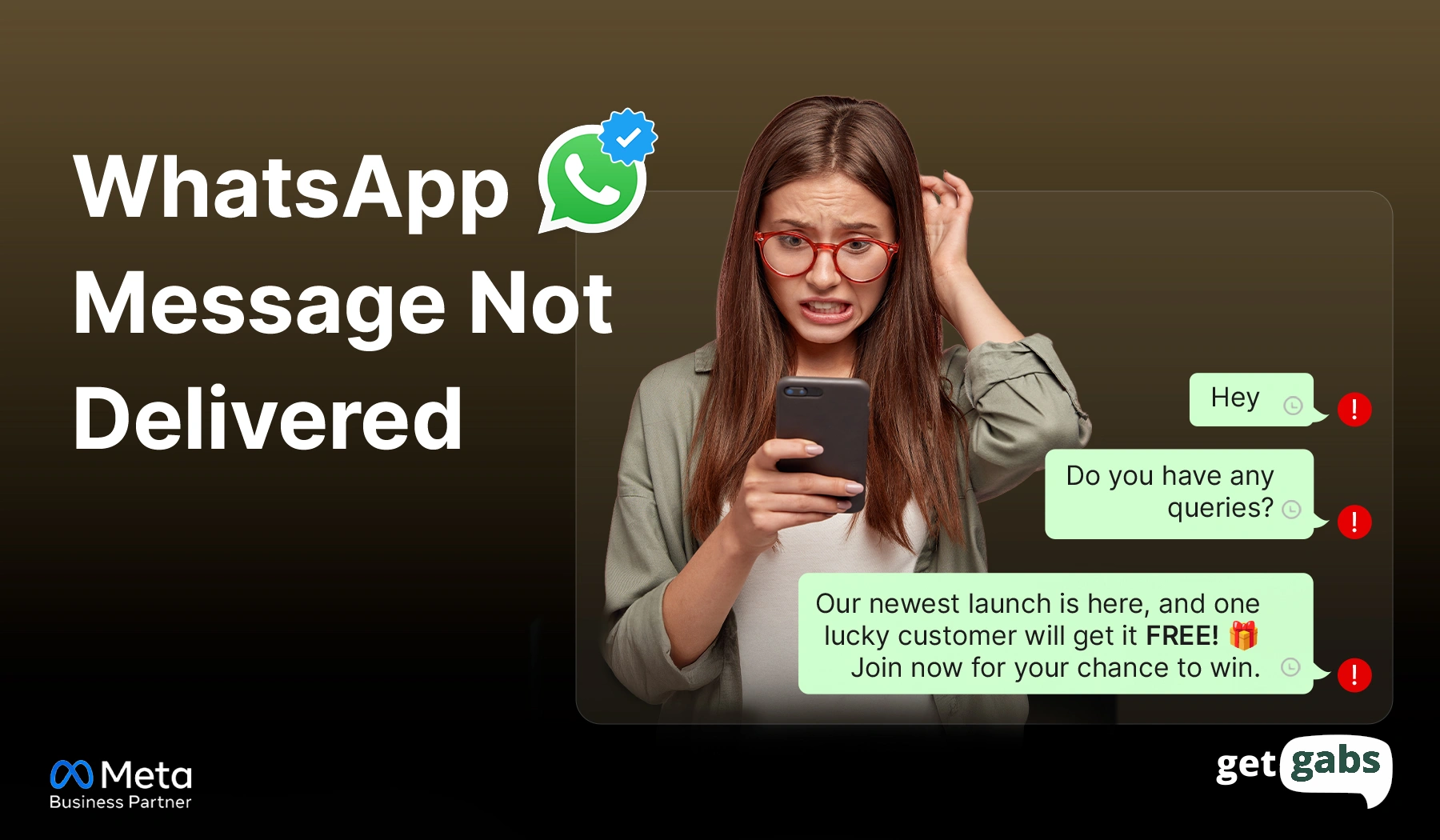
“WhatsApp Message Not Delivered”: if you’re seeing this status on a business message, you’re not alone. You send a message, wait, and that single grey tick just sits there.
It’s more than just annoying. A missed message on WhatsApp Business API means a missed order update, missed OTP, and a missed sale. And in every time-sensitive campaign, each undelivered message costs revenue.
With WhatsApp built for speed and an outstanding delivery rate of 99%, the reason behind WhatsApp messages failing to be delivered is not just random. There is something specific blocking it. This can be due to an expired 24-hour session window, exceeded daily messaging limits, an unapproved template, or clothes.
No matter what the cause is, there is always an instant fix to it. This guide will break down the common reasons for WhatsApp messages not being delivered and how to fix them.
What Does “Message Not Delivered” Mean on WhatsApp?
Each message that you send on WhatsApp goes through certain stages before it gets delivered. Tick or checkmarks tell you exactly where your message is in that journey.
| Status | Marker | What It Means |
| Sent | One grey tick | Message left on your device or server, but hasn’t reached WhatsApp’s system yet |
| Delivered | Two grey ticks | The message reached the recipient’s phone |
| Read | Two blue ticks | The recipient opened and viewed the message |
| Failed | Red exclamation mark or “Not Delivered” label | The message never reached the recipient’s device |
But here’s where most people get confused. “Pending”, “not delivered” and “failed” might sound similar, but they are not.
Pending means WhatsApp is still trying. Give it a few minutes, and it will get clearer on its own. “Not delivered” means WhatsApp attempted to deliver but hit a wall like an inactive number, a blocked sender, or a network issue. Whereas failed means Meta has stopped trying and marked the message as undelivered with an error code explaining why.
How to Check Why a WhatsApp Message Failed?
Before troubleshooting anything, first determine which situation you’re actually in. And for that, ask yourself these three questions:
1. Does your dashboard show an error code?
If your answer is yes, skip ahead to the error code table given below. It will tell the exact reason behind each code.
2. Is the message just stuck on a single grey tick?
It generally means WhatsApp is still attempting delivery. So give it a few minutes before you assume it has failed.3.
3. Are some contacts receiving the message while others aren’t?
This kind of partial delivery during broadcast can be due to messaging limits or quality rating issues.
4. One question often clears up most of the cases instantly. “Did the customer message you in the last 24 hours?”
Meta only allows free-form replies within a 24-hour window. After that, you need a pre-approved template to ensure message delivery.
How to Diagnose Delivery Issues at Scale?
If you’re running large-volume campaigns, checking failed messages one by one won’t work. Start by looking at your delivery rate to detect patterns instantly.
| Delivery Rate | Status |
| 85%+ | Healthy |
| 70-84% | Needs attention |
| Below 70% | Investigate immediately |
If your rate falls below 85%, just check out these three things first:
- Inactive numbers: Clean your contact list to remove the numbers no longer on WhatsApp.
- Quality rating: A decline in quality rating means you’re sending messages too often to the wrong customers.
- Template issues: Check whether specific templates are creating repetitive failures.
Note: The opt-in status shown in your dashboard is not always right. If the customer opted out directly via WhatsApp, your marketing messages keep failing to deliver.
Common WhatsApp Delivery Issues and Their Fixes
1. Error 131026: Recipient Can’t Receive Messages
The error indicates that the message was not delivered because of a problem on the recipient’s side. You simply can’t force the message delivery. All you can do is confirm if it is a real, active, and updated contact number.
Status shown: “Failed” with error code 131026 (message undeliverable).
Cause: Meta groups several recipient-side issues under this one code:
- The number isn’t registered on WhatsApp.
- Recipients have not accepted WhatsApp’s latest terms.
- The recipient has blocked your number on their WhatsApp.
- Your recipient’s app version might be too outdated.
Fix:
- Confirm the recipient’s phone number is actively registered on WhatsApp.
- Ask the recipient to update their WhatsApp to the latest version.
- Ask the recipient to check their app for any pending Terms of Service and Privacy Policy agreements.
- Make sure your recipients have not blocked your WhatsApp business account.
2. Error 132001: Template Not Approved
It happens when you try to send a template Meta hasn’t approved till now or one that got rejected.
Status shown: Failed – Error code 132001 (“template does not exist” or “not approved”).
Cause:
- The template is still in the approval stage with Meta.
- Your template gets rejected for unclear or policy-violating content.
- Template name or language doesn’t match what’s approved.
Fix:
- Verify your template’s status in your Meta dashboard before sending.
- If rejected, cross-check the wording to remove vague claims or missing context and then submit again.
- Only send templates that are once marked “approved.”
3. Error 131047: 24-Hour Session Window Expired
WhatsApp only allows free-form replies within 24 hours of the customer’s last message. After that, you need a pre-approved template to reply to your customers.
Status shown: Failed – error code 131047 (“re-engagement message”)
Cause:
- The customer hasn’t messaged you for over 24 hours.
- You sent a regular reply instead of using a pre-approved template.
Fix:
- Use pre-approved message templates to re-engage with customers.
- Get your customer to message you first to reset the 24-hour chat window.
Many WhatsApp automation tools today automatically choose the right template based on the type of conversation to prevent errors before they happen.
4. Error 131049: Per-User Marketing Limit Hit
Meta captures the number of marketing messages that one person can receive in a given time. When a contact reaches that threshold, your marketing messages won’t be able to reach the contact. This user limit is not just for your brand, but for all brands.
Status shown: Failed – error code 131049 (“not delivered to maintain healthy ecosystem engagement “)
Cause:
- Contact has already received the maximum number of promotional messages allowed by Meta in a specific period.
Fixes:
- Avoid resending instantly. Wait for at least 24 hours before sending it again.
- Use a utility or service message instead, as they are affected by the cap.
- Track failures and retry strategically.
5. Error 131056: Pair Rate Limit Hit
It generally happens when your business sends too many messages to the same recipient very frequently.
Status shown: Failed – error code 131056 (“pair rate limit hit”)
Cause:
- Too many messages are sent to the same phone number in a short duration.
- Common during retry loops, automated triggers, and back-to-back follow-ups to a single contact.
Fix:
- Pause the failed messages and retry with increasing delays.
- Try combining multiple updates in one message instead of sending several quickly.
- Slow down automated campaigns by spacing messages.
6. Error 131048: Spam Rate Limit Hit
This error occurs when your WhatsApp Business API number is restricted by Meta because of excessive spam flags or blocked messages. Meta automatically throttles delivery to maintain platform quality.
Status shown: Failed – error code 131048 (“spam rate limit hit”)
Cause:
- Your account quality rating has dropped due to a high block or report rate.
- Meta blocks the new message dispatch to prevent a further fall in the quality rating.
- Too many recipients have ignored, reported, or blocked your broadcast message as spam.
Fix:
- Instead of blasting the same message to everyone. Try to segment your contact list to deliver a more tailored message and improve engagement.
- Check WhatsApp Messenger to identify which message template has higher block rates.
- Avoid overmessaging the same contacts.
WhatsApp Business API Error Codes Cheat Sheet
Got an error code from your dashboard? Find it below for a quick answer:
| Error Code | Name | Quick Meaning |
| 131026 | Recipient Can’t Receive Messages | Number unregistered, outdated app, or terms not accepted |
| 132001 | Template Not Approved | Template pending review or rejected |
| 131047 | 24-Hour Session Window Expired | No template was sent after the free-form window closed |
| 131049 | Per-User Marketing Limit Hit | Contact hit the marketing message cap for the period |
| 131056 | Pair Rate Limit Hit | Too many messages are sent to the same recipient too quickly |
| 131048 | Spam Rate Limit Hit | Quality rating dropped, sending restricted |
How to Prevent Delivery Failures Going Forward?
Fixing the errors is important, but preventing them in the first place can save lots of your time, money, and customer trust. Here are simple things that you can follow to avoid WhatsApp message delivery failure:
- Update the App: Make sure both you and your recipients are running the latest WhatsApp version.
- Keep templates pre-approved and compliant: Submit your template before you need it for getting approved and avoid vague or promotional messages that Meta generally flags.
- Track the 24-hour session window: Set up alerts or automation that flags when the conversation window is going to close. It enables your team to switch to templates before the free-form reply fails.
- Maintain High Quality: Try to personalize each of your messages and use pre-approved templates for better engagement and avoid a drop in quality rating.
- Clean your contact lists every 30-60 days: Remove blocked, inactive, or unengaged numbers to maintain high engagement signals.
- Pace your sending: Spacing out the messages prevents both throughput and pair rate limit errors. That’s where the right WhatsApp bulk message senders can help you handle pace and segmentation automatically instead of firing each message at once.
How Does Getgabs Help You Avoid WhatsApp Message Delivery Failures?
Most of the delivery failures are due to one thing. And that is knowing there is an issue before it’s too late. A platform like Getgabs is especially designed to close that gap.
- Meta-approved infrastructure: Being an official WhatsApp Business API partner, the platform runs on Meta-approved infrastructure. No bans, account restrictions, or failures.
- Real-time delivery tracking: Monitor the exact status of your message sent, delivered, read, or failed without juggling via logs.
- Instant Failure alerts: Instantly get notified the moment a message fails, along with the error code. It lets your team act right away rather than finding out the day after.
- Template approval support: The platform helps you create templates as per Meta’s guidelines rather than writing everything manually. You can try the free AI WhatsApp Template Generator to create compliant templates in seconds.
- Quality rating visibility: Businesses can even track their account quality rating in real-time to adjust their sending before it drops far enough.
If you’re also facing the “WhatsApp message not delivered” issue, connect with Getgabs today to access tools, analytics, and expert guidance to avoid message delivery failure and keep your delivery rate high.
Conclusion
“WhatsApp message not delivered” does not need to be a mystery. Each failed message has some reason behind it. It can expire the 24-hour messaging window, use unapproved templates, block numbers, or drop in your quality rating.
Just simply identify the reason behind the delivery failure and fix your issues within minutes following our guide. But remember, the real shift happens when you stop reacting to failures one by one and instead start preventing them.
For that, you just need to follow a few things like cleaning your contact list from time to time, using pre-approved templates, and monitoring quality ratings. While scaling, a business with fewer delivery issues is the ones that closely watch the pattern, not just one message.
If you are also tired of failed message delivery issues, an official Meta WhatsApp Business API partner like Getgabs helps you avoid them by offering real-time delivery tracking, instant failure alerts, and template approval support. Lesser surprises, instant fixes, and the message actually reaches the customer in real time.
Frequently Asked Questions
No. Meta does not count any failed messages towards the billing. It only charges for the messages that are successfully delivered.