


Too Long? Read This First
- Switching your WhatsApp API provider is safe, and you don’t even need to start from scratch.
- Your phone number, display name, blue tick badge, and Meta Business verification move automatically when you switch.
- Before you migrate to a new provider, disable Two-step verification, export chat history and CRM data, and move near month-end since billing resumes on the 1st of next month.
- Template and chat history doesn't transfer. Meta only retains the last 30 days of messages.
- Integrations like Webhooks, chatbots, and CRM connect the moment you unshare your account, and you need to manually reconnect them.
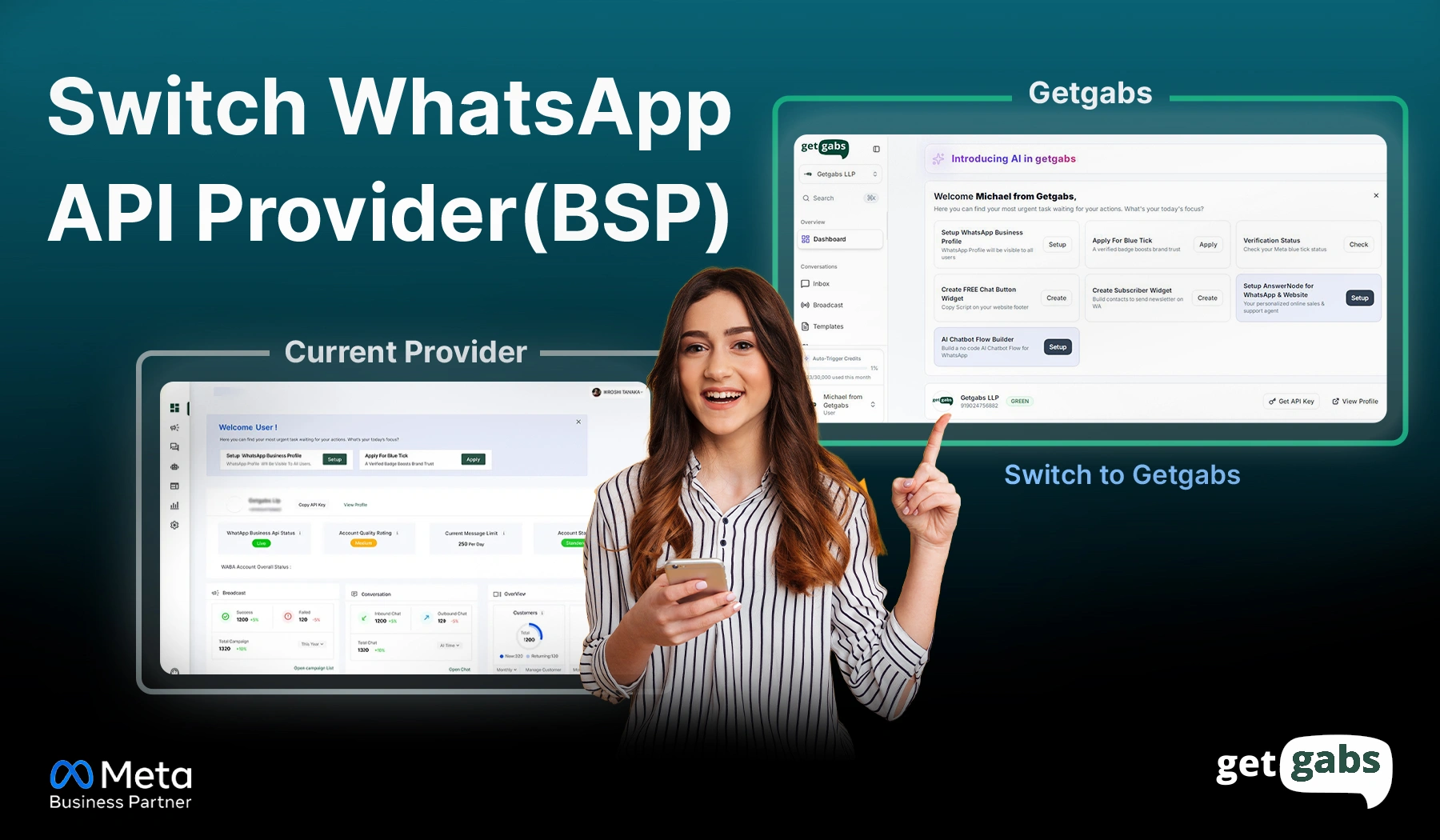
- If pricing, missing features, or support are holding you back, Getgabs is the best WhatsApp Business API provider to switch to with 0% markup on Meta costs, transparent pricing, and hands-on migration support.
Want to switch your WhatsApp API provider without losing your business number? You can. And with the right planning, you can even keep your business number and your workflows and reduce disruption during the transition.
Maybe your current provider raised prices or support goes quiet right when you need it. Or maybe you’ve simply outgrown what your current provider offers. Whatever the reason, switching providers feels risky.
But it is not, and you’re not stuck either. The WhatsApp Business Platform allows businesses to migrate their WhatsApp Business account to a new WhatsApp Business API provider or BSP without burning everything down.
You just need to know what to check before you leave, what actually moves with you, and what to test before going live. In this guide, we learn how to switch your WhatsApp Business API provider without much hassle.
Why Do Businesses Switch Their WhatsApp API Provider?
Not sure if switching providers is right for you or not? Here’s the most common reason that pushes businesses to make this move:
| Reason | What It Looks Like |
| Rising costs | Your bill keeps growing as your message volume increases. |
| Slow or poor support | Getting help takes too long when something breaks. |
| Missing features | You need better automation, chatbots, or analytics, and higher sending limits. |
| Outgrown Support | You’re hitting template limits or messaging caps often. |
| Weak integrations | Your CRM, helpdesk, or sales tools don’t connect smoothly. |
If two or more of these sound familiar to you, then it’s time to start comparing providers.
What Transfers and What Doesn’t
Switching WhatsApp API providers doesn’t mean beginning from scratch. Here’s what stays the same and what needs a bit of rework to avoid surprises during the switch:
What stays the same:
- Phone number: Your business numbers stay active.
- Display name: It also remains the same and moves with you to the new provider.
- Official Blue Tick badge: If you already have a blue tick verification badge, the status moves with you automatically.
- Business Verification: Your Meta Business Manager verification stays the same as well.
What needs attention:
- Templates: Need a fresh approval check.
- Old Chat history: Past conversations and media files do not migrate. You must export natively before the switch.
- Integration: All previous messaging routing, AI chatbot, CRM, or server connections will disconnect the moment you switch.
- Messaging tier and quality rating: Might reset.
Your name, number, and badge remain the same as Meta owns them instead of the provider. This migration only changes who manages your account behind the scenes. Templates and chat history require more care. We will discuss this in more detail later in this article.
Pre-Migration Requirements for Switching WhatsApp API Provider
Prepare yourself by following these steps before switching WhatsApp API providers. The most frequent causes of failed migrations or delays are due to these skipped steps:
1. Export your data: Save all your chat history, templates, contact lists, automation flow, reporting systems, webhooks, and CRM connection. Some providers have an easy way to export this; others do not.
2. Ensure the number is active: Make sure your registered number receives SMS or a voice call when switching to confirm ownership.
3. Disable Two-step Verification (2FA): It can be difficult to migrate if it is on. Here’s how to turn it off:
- Go to Meta Business Settings
- Select WhatsApp Accounts, then click your current account
- Open WhatsApp Manager
- Go to Account Tools → Phone Numbers
- Click the gear icon next to your number, then select Two-step verification to turn it off
- Confirm using the link sent to your business email
How to Migrate from Your Current WhatsApp API Provider to Getgabs (Step-by-Step)
Let’s explore how you can easily migrate your WhatsApp API provider using Meta’s embedded signup flow:
Step 1: Disable two-factor authentication (2FA):
Begin by disabling your 2FA for the phone number you want to migrate via your current WhatsApp API provider. If you have access to your WhatsApp account, you can disable it by following the above steps by yourself.
Step 2: Start the onboarding process in Getgabs
- Log in or register to get a Getgabs account
- Go to the Dashboard and click on the “Connect Now” button.
- Now, Click on “Continue with Facebook.”
- Log in to your Facebook Account
- Click on “Continue” to confirm your account with Getgabs
- Now you can check the permissions and click on “Get Started.”
- Fill in your business details to create a business portfolio, or choose from the dropdown if a business account is already created
- To create a new business portfolio or manager account, fill in the details according to your business documentation, like a GST certificate or an Incorporation Certificate
- Business Verification will be sent for approval. Meta will send an email regarding the approval.
- Your Number will be approved for WhatsApp Business API
- Congratulations! You are ready to broadcast messages, support chat, and automate your business through WhatsApp.
What happens to Templates and Chat History during the switch?
- Your templates carry over: If you migrate through the official migration process provided by Meta, your approved templates will automatically be transferred to your new WhatsApp Business account. No need to wait for new approval or to start all over again.
- Your chat history doesn’t: Meta only stores messages of the last 30 days on its side. It means your old conversation won’t automatically appear in your new provider’s dashboard. For that, you need to export everything you need before making the switch.
- Already using a CRM? You’re probably fine: If your chat already syncs to a CRM or helpdesk, you don’t have to worry about it. Your data is already saved outside WhatsApp, and this switch to the WhatsApp Business API provider won’t affect you.
How Long Does WhatsApp API Migration Take?
Migration itself is an instant and straightforward process. But the complete switch to your WhatsApp API provider requires some sort of proper planning.
The timelines mainly depend on the account complexity, template volume, internal approval processes, provider coordination, and the number of integrations.
Once you unshare your account, you won’t be able to send messages until your new provider’s billing takes over. It only happens on the 1st of next month. You should start near month-end to keep it short.
Common Mistakes to Avoid When Switching WhatsApp API Provider
The switch itself does not just cause issues during migration to your WhatsApp API provider. Sometimes it can be due to skipping some tiny steps:
- Not Backing Up Important Data: Your chat history, contacts, or analytics will not transfer automatically. That’s always export or take a backup of important data before migrating to your WhatsApp API provider
- Forgetting to turn off 2FA first: If your Two-step Verification is still on, your migration will not happen. That’s always a good idea to make sure to disable it before you begin.
- Forgetting to Update Webhooks and Integrations: After the switch, reconfigure your webhook, CRM, help desk, and other third-party integrations so messages continue to flow correctly.
- Double billing checks: Inaccurate migration dates and cycles due to not being aligned with your billing cycles can result in double billing when switching BSPs.
- Not Informing Your Team: Ensure your support and sales teams are informed when the migration is taking place so they can be prepared for any temporary problems or customer inquiries.
Conclusion
We hope this guide on how to switch your WhatsApp API provider helps you with a smooth switch. It is now becoming increasingly common as businesses mature, scale, and enhance their marketing strategies. Your first choice doesn’t mean it’s your forever choice.
During this migration, your number stays yours, your identity carries over, and even your templates keep working with the right planning and preparation. The businesses that struggle are not the ones that switch, but those that are open and doing so without any planning.
So before you make the switch to your WhatsApp API provider, remember to turn off your 2FA, export important data, map your integration, and time your move around the billing cycle. It is also important to test everything out before your customer notices.
If your current provider is holding you back due to any of these reasons, including pricing, support, or missing features, don’t get stuck. Simply switch to a Meta WhatsApp API partner like Getgabs, offering transparent pricing, 0% markup on Meta cost, and hands-on migration support to switch with confidence.
Frequently Asked Questions
Meta doesn’t charge any fee for the migration itself. The embedded signup process is completely free. However, some BSPs might charge a small setup fee. It is important to confirm with your new API provider.